


Have you just started working with an agency or are you getting some freelance help with your Google Ads account? Perhaps you are just wanting to add another user from your business. To view who has access to your Google Ads account and the level of access you want to give new users is imperative.
It’s very simple to check, remove or add access to your Google Ads account. Let’s begin by these steps below:

When you are viewing the users with access at this point, you will see your own login and the level of access you have. You want to make sure if you are the business owner, you have full admin access to your own account. If your access states “Standard” or “Read Only” then this means someone else actually owns the account, and they have the authority or ability to remove your own access at any point.
Hot tip: whenever you are adding or removing a user, do a quick check that every other account that has access is still the relevant permission level. You can change a user access level if you need to – not everyone needs to be an Admin.
Now to the fun – to add someone who is one person and not an agency, click the blue plus button, select their permission level, and invite them via email. The user will need to accept the invitation in order to access your Google Ads account.
To remove someone’s access, simply click the “Remove Access” link in the right column – it’s that easy and instantaneous.

This step is if you want to remove or add an agency, rather than an individual person. It can be a bit tricky as the Managers tab can be missed at first but if you cast your eyes next to “Users” there is a “Managers” tab! See below-

You can give agencies admin ownership, however if they have no reason to be able to add or remove users then this is not necessary. You can simply toggle that switch off and this will still allow agencies to have access, but they won’t have total control of your account.
You will notice in this tab there is no blue plus button. This is because an agency needs to request the access to your account. For them to do this, you will need to provide your Google Ads CID number, which looks like a phone number. Once the agency has sent a request, you can return to this tab, view the request and click ‘approve’.
Similarly, to user access when you want to remove a manager, simply click the “Remove Access” link in the right column.
Now that you have granted or removed access for your users or an agency, you must also verify who has access to your billing information. Sounds similar to what we have just done right? Incorrect! This is not the same as user access. Interestingly, there can be a vast difference between a Google Payments user and a Google Ads user.
To adjust permission levels or select who is Primary Contact, set notifications and of course add or remove users as you need, follow these easy steps:

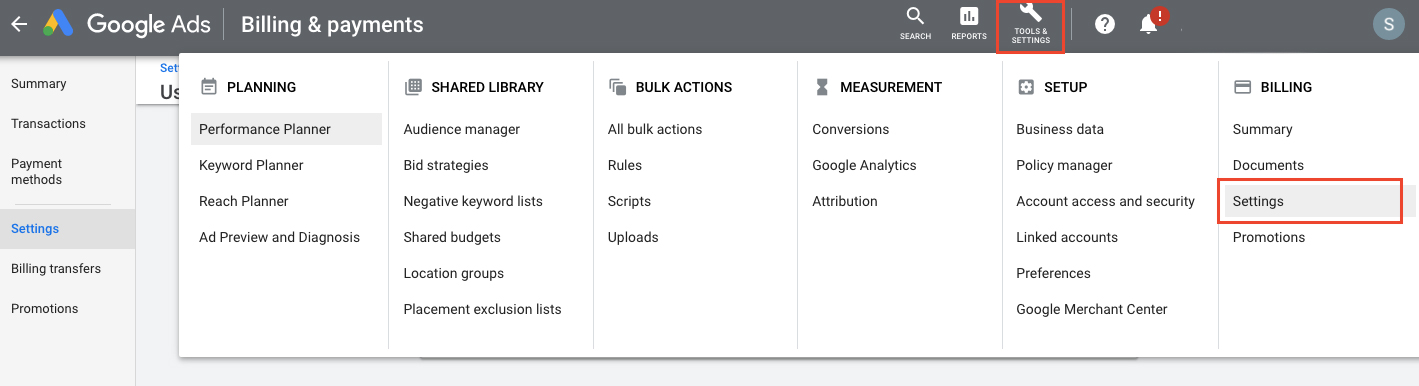
And that’s it! You have now learnt how to add and remove users from your account and have visibility over who has access to your billing. This is particularly important if you are working with agencies and giving them access to your account.
While you know how to have the full control over your account, you should still be vigilant about allowing access to your business’ information. As we mentioned above, it is important to routinely check in on who has access and at what level. Good luck!
