



If you have just hired a freelancer, agency or have a new colleague chances are you will need to give them access to your Google Tag Manager account. Don’t stress- this is easy and we can give you a run down in a few simple steps below.
One of the first steps you will need to decide, is the level of access you want to give to the new user. There are two levels to decipher here, the Container or the Account. However, if your business only has one account and one container then there is not a huge difference to be made here. On the other hand, if your business has multiple containers within an account, then you may only wish to grant the user access to a single container for security reasons.
As each business is different, we are going to take you through both options for granting access to an Account or Container level.
Granting Access to an Account
If you want to allow a user to have access to all containers within your account, then you will grant them access at an Account level.
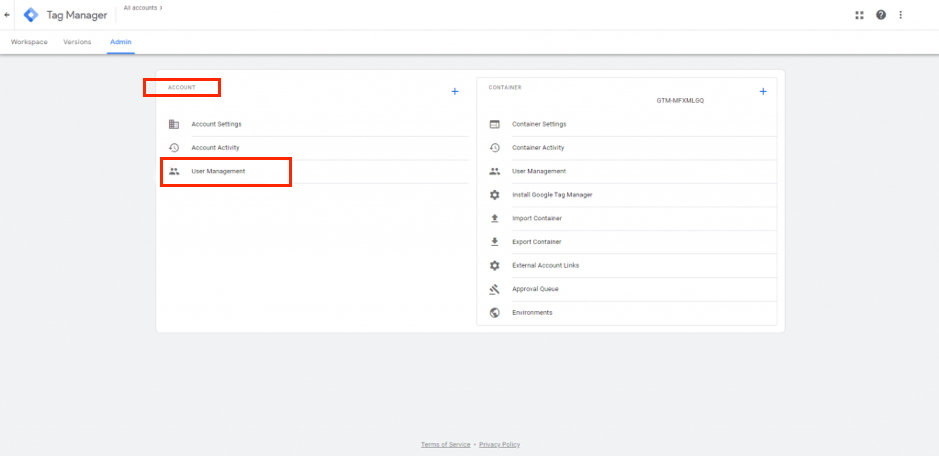
To begin, select the admin tab in the top left of your account overview page. Two columns will appear, one for account and one for containers.
Alternatively, if you want to reduce the scope of access a user has, you can give access only to a container. Similarly, to the Account access, begin by selecting Admin within your Google Tag Manager account.

Alternatively, if you want to reduce the scope of access a user has, you can give access only to a container. Similarly, to the Account access, begin by selecting Admin within your Google Tag Manager account.
